
Operations
Products & Store
Sell products through your public store or in-person POS. Every sale gets a reference number for pickup, shipping, tickets, or downloads.
Product types
When you create a product, choose the type that matches how you fulfill it:
- Physical goods: inventory, SKU, pickup or shipping
- Digital goods: upload files or an external download link
- Rental: customers book dates first; you confirm, then invoice for payment (see Bookings & Calendar)
- Ticket: event admission with capacity; redeem at the door
- Other: general items with a pickup ID for your records
Creating products
- Go to Products → Add Product
- Set name, type, price, and photos
- Configure type-specific options:
- Physical: stock/SKU; choose pickup or ship
- Digital: upload files and/or paste a download URL
- Ticket: set capacity
- Rental: set price (and recurring billing if needed); customers book from your public product page
- Mark the product public so it appears on your storefront
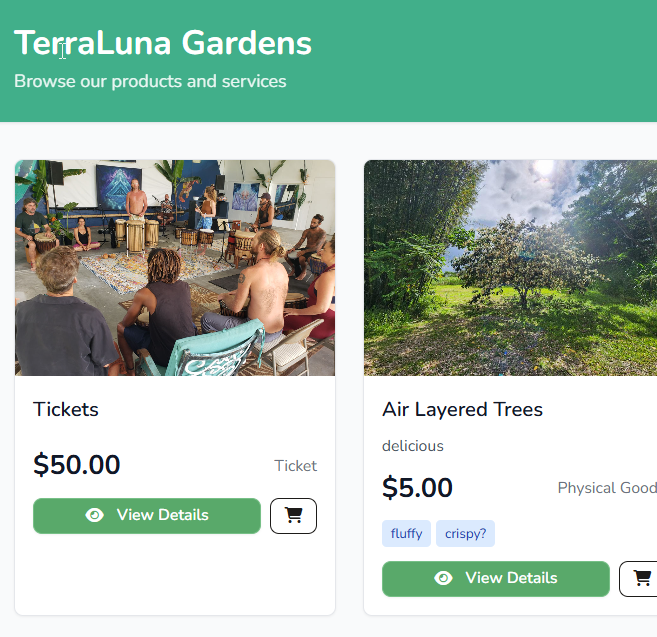
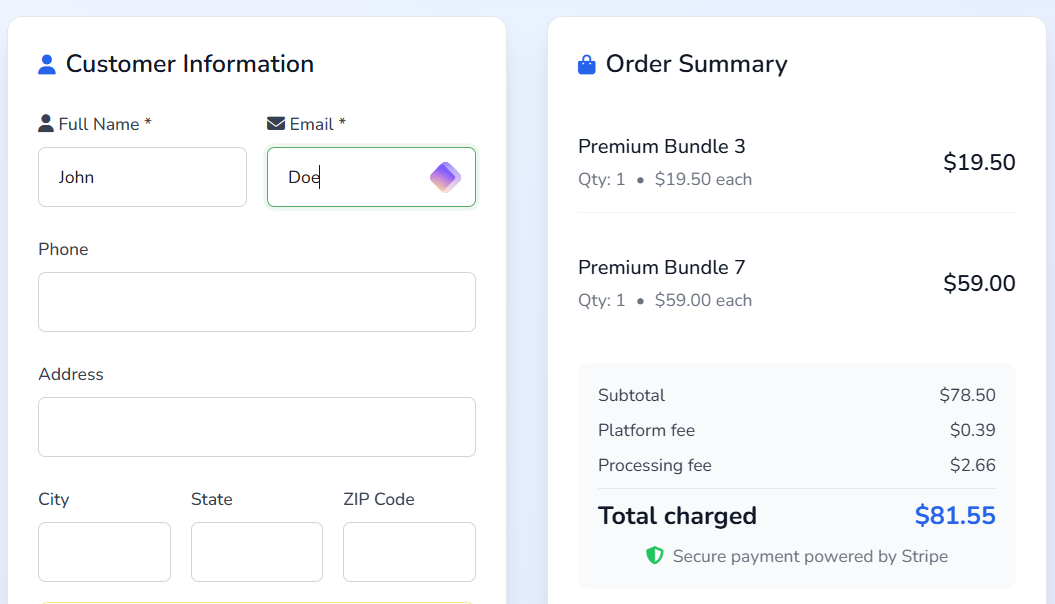
Store checkout (online cart)
The cart checkout flow is for instant purchases, not date-based rentals.
- Customers browse your public store , add eligible items to cart, and pay
- Can go in the cart: physical goods, digital goods, tickets, and other one-time products
- Cannot go in the cart: rentals (use Book now instead) and recurring-priced products (invoice or book directly)
- Tickets, physical goods, and physical + ticket mixes are allowed in one cart
- Physical goods set to ship require a shipping address at checkout
- Patron-only products require the buyer to have patron access before checkout
- Stock is checked at checkout and again when payment completes
- Buyers receive an order confirmation email with reference numbers
- Digital buyers download from My Purchases
- Your team gets a notification with sale details and reference numbers
Store Sales (fulfillment)
After payment, manage every sale type in Store Sales (Finance section in the sidebar). Filter by product, type, or date.
| Type | What you do in Store Sales |
|---|---|
| Ticket | Search by name, email, or ticket # → Redeem |
| Physical (pickup) | Confirm pickup when the customer collects the item |
| Physical (ship) | Mark shipped with optional tracking number |
| Digital | Buyer downloads automatically; you can view order refs here |
| Rental (after booking invoice paid) | Mark picked up, then Mark returned |
| Other | Confirm pickup when fulfilled |
Online checkout, paid booking invoices, and in-store POS sales all appear here. Open a product from Manage fulfillment to see all orders for that item.
Point of Sale
In-store sales also create fulfillment records and (when paid) send the same confirmation emails. See Finance & POS for POS setup and allocation.
Patrons & supporters
Patron subscriptions are separate from product sales. See Patrons for monthly support setup. Patron-only products can be restricted to active patrons.
Customer portal & buyer hub
- Buyer hub: My Purchases & Bookings : invoices, reference numbers, digital downloads, bookings
- Customer portal: pay open invoices and view history
- Store cart checkout & fulfillment → Store Sales
- Rental date reservations & payment → Product Bookings (confirm → invoice → Store Sales after pay)
- Shared resource lending → Resources → booking list
- Patron subscriptions → Dashboard Patrons card or Subscriptions