
Operations
Bookings & Calendar
Seedling separates things you sell at checkout from things you reserve on a calendar. This page explains where org members manage each kind of booking or sale.
Quick map: where to go
| What happened | Where to manage it |
|---|---|
| Customer bought a product online or via POS | Store Sales : pickup, ship, redeem tickets |
| Customer reserved a rental by date (pending request) | Product Bookings : confirm, invoice, complete |
| Customer paid a rental booking invoice | Store Sales : pickup and return for that rental |
| Another org or customer booked your shared resource | Resources → incoming bookings: approve or decline |
| Monthly patron support payment | Dashboard Patrons card or Subscriptions |
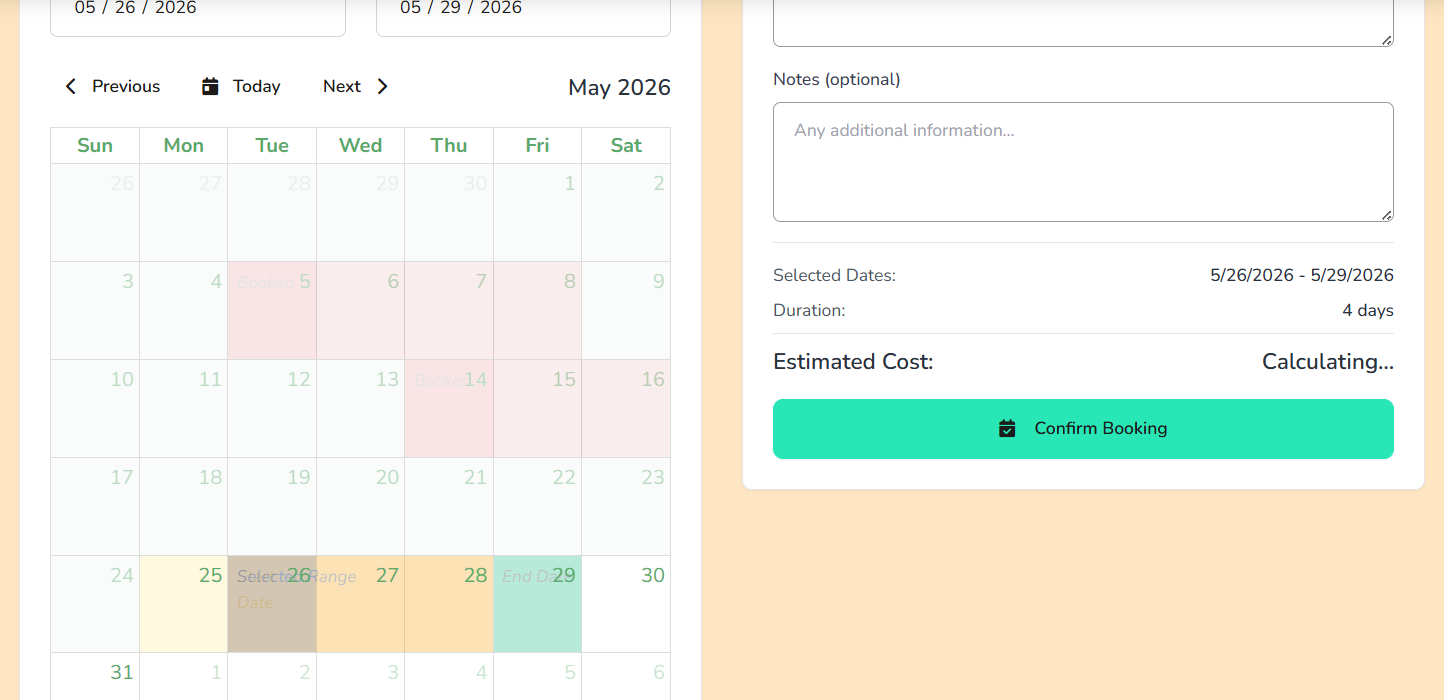
| See everything on a timeline | Calendar : product bookings, resource bookings, tasks, projects |
Unified calendar
Open Calendar in the Operations section to see:
- Product bookings: rental reservations (blue)
- Resource bookings: shared equipment or space lent to others (green)
- Tasks & projects: internal due dates
Calendar is a view. You still confirm or complete bookings from the Product Bookings or Resources pages.
Product bookings (rentals by date)
Rental products use a book first, pay after confirm flow. They cannot be added to the store cart.
- Create a product with type Rental and mark it public
- Customer clicks Book now on your storefront, picks dates, and submits a request (status: pending)
- Review at Product Bookings → open the booking
- Confirm the booking, optionally checking Create invoice and Email payment link
- Customer pays the invoice (Stripe Connect required)
- After payment, fulfill pickup/return in Store Sales
- Mark the booking Complete when the rental period ends
You can also create bookings manually from Products or the Calendar, with the same confirm → invoice → pay options.
Resource bookings
Shared resources (tools, rooms, equipment) use a separate booking flow between organizations or customers. See Shared Resources for creating resources and approving requests.
- Incoming requests appear on the resource or in your booking management views
- Approve or decline; use notes to coordinate pickup and return
- Patron-only resources require an active patron subscription to book
Patron subscriptions
- Sign-ups: public patron page (
/organizations/your-slug/patrons) - Overview: Patrons card on the dashboard : active count and monthly total
- Full list: Subscriptions : pause, resume, billing
- Buyer view: patrons see status in My Purchases
Setup details: Patrons guide.
Permissions
Team members need the right permissions (for example manage bookings, view invoices, approve resource bookings). Owners configure roles under Role Management .
- If stock runs out between checkout and payment, fulfillment may be blocked, so check the invoice and activity log; you may need to refund manually
- Partial refunds do not automatically restore inventory
- Items already shipped or redeemed are not voided on refund, so handle those manually
- Card POS sales email the buyer only after the linked invoice is marked paid